Split a PDF into Separate Files
September 4, 2026
Written by Mohammad Sohail
Sometimes you receive a large PDF but only need a few pages. Splitting lets you extract the relevant pages into a separate file — smaller, easier to share, and easier to manage.
When Splitting Is Useful
You receive a 100-page report but only need pages 15-22 for a meeting. You want to send one chapter of a textbook to a colleague. You need to separate a combined invoice PDF into individual receipts. You are submitting pages from a larger document to a government portal that has a page limit.
What I Tested
I used the Split PDF tool on a 24-page PDF (3.2MB).
• Test 1: Extract pages 1-5. Result: New PDF was 780KB (5 pages). All text and images rendered correctly.
• Test 2: Extract page 12 only. Result: New PDF was 145KB (1 page). The page retained its original formatting, fonts, and images.
• Test 3: Extract pages 20-24 (last 5 pages). Result: New PDF was 920KB. The page order was preserved correctly.
Step-by-Step
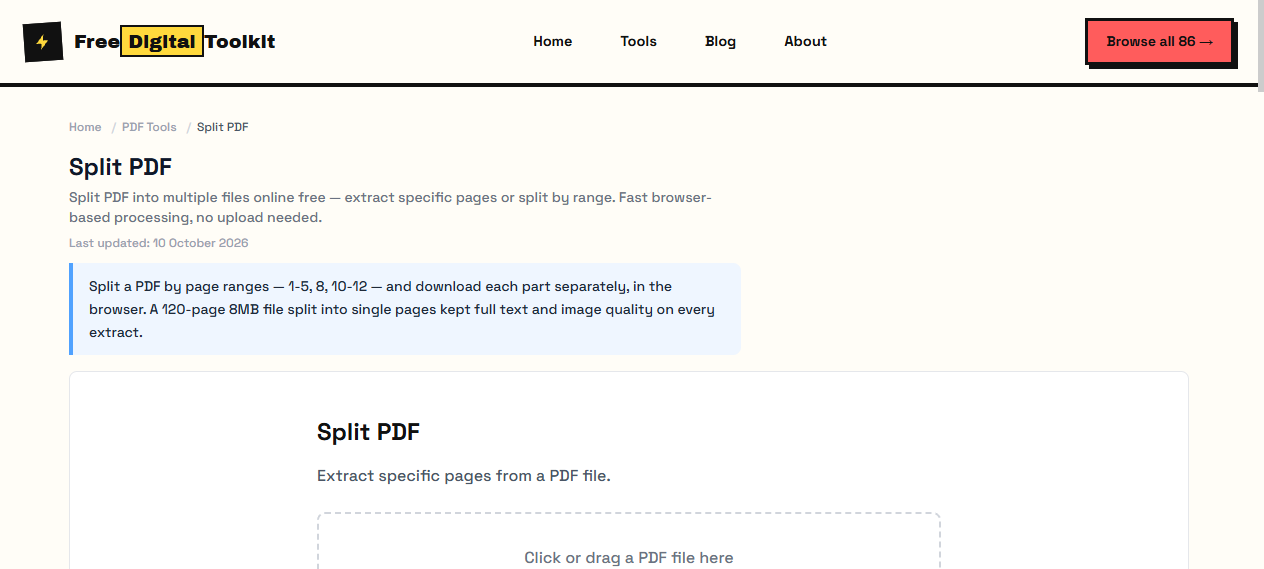
(1) Open the Split PDF. (2) Click 'Select PDF File' and upload your document. (3) The tool displays all pages as thumbnails. (4) Click on the pages you want to extract, or enter a page range (e.g., 5-10). (5) Click 'Split'. (6) Download the extracted pages as a new PDF.
Limitation
The tool extracts pages as-is — it cannot modify content within pages. If you need to redact, annotate, or edit specific pages, you will need a full PDF editor. Splitting also preserves the original page size; it does not resize or reformat.
Common Mistake
Selecting pages in the wrong order. The tool extracts pages in the order you select them, not in their original document order. If you click page 10 first, then page 2, the output will have page 10 before page 2. To maintain original order, select pages from first to last.
How It Compares
Adobe Acrobat's Extract Pages feature offers more options (split into separate files, extract bookmarks) but requires a $22.99/month subscription. SmallPDF and ILovePDF both work but require uploading your PDF to their servers. Our tool processes entirely in your browser with no upload, no file size limit, and no account.
Privacy: Your PDF is processed entirely in your browser using JavaScript. The file is never uploaded to any server. No one at FreeDigitalToolkit can see your document content.
Next Step: After splitting, if the extracted file is still too large, use the Compress PDF tool to reduce its size further.
Split, Extract or Remove — Which One Do You Need?
Split takes a contiguous range — pages 15 to 22 — and writes them into a new document. Extract builds a new document from any pages you click, whether or not they are adjacent, which is the right choice when you need pages 3, 17 and 48 together. Remove is the inverse: keep everything except the pages you selected, which is how you delete a blank last page or a scan you do not want to share.
All three leave the original file untouched and produce a separate download, so you can try a range, check it, and start again without having damaged anything. If the pages you want are scattered, reach for the Extract PDF Pages tool instead of running the split repeatedly.
Checking the Extracted Document
Before you send it, confirm three things. The page count should match the range you asked for. The first and last page should be the ones you expected — that catches an off-by-one error immediately, since the tool counts physical pages starting at 1. And the orientation should be upright on every page, because a sideways sheet stays sideways through the split.
If the extracted file is still heavier than you wanted, run it through Compress PDF; if a header or cover page came along by mistake, remove it in a second pass. Both take seconds and save an email attachment bounce later.
Splitting on a Schedule
Recurring split jobs — weekly reports, monthly statements, per-client invoices — are worth writing the range down for once the pattern is stable. Keep the source file in one folder, note the page count beside it, and record the expression you used so the next person does not have to rediscover that the pages you need are always 3 through 11.
Page counts drift when the source document grows. Before reusing last month's range, compare the total page count against the current file: if the report gained a page at the front, every page you want has shifted by one. The thumbnails make that a five-second check, and catching it before the split saves re-running the job and re-sending the attachment.
Frequently Asked Questions
Does splitting a PDF reduce its size proportionally?
Roughly, but not exactly. Each output carries its own copy of the fonts and page resources it uses, so five pages out of a hundred usually land well under a tenth of the original size. What dominates the result is images: a scanned page keeps its full resolution, which is why an extract can still be large.
Can I split one PDF into many files at once?
The tool produces one output per run — select a range, split, download, then upload again for the next range. For a document that needs to be divided into every individual page, repeated runs are fast because each pass is only a few seconds.
Do bookmarks, links and form fields survive the split?
Bookmarks and internal links that point at pages inside the extracted range are kept. Anything referencing a page you left behind is dropped, because its target no longer exists in the new document. Fillable form fields on the extracted pages are preserved with their values.
Can I split a password-protected PDF?
No. The file cannot be read until it is unlocked, and the tool never asks for the password. Open it in a PDF reader and print or save an unprotected copy first, then split that copy.
Is my document uploaded when I split it?
No. Splitting runs in JavaScript inside this browser tab. The file is read from your machine, the selected pages are assembled in memory, and nothing is transmitted to a server.
Related Guides
Try it yourself
Open Tool →