Reduce PDF File Size for Email
September 8, 2026
Written by Mohammad Sohail
Why PDFs Are Large
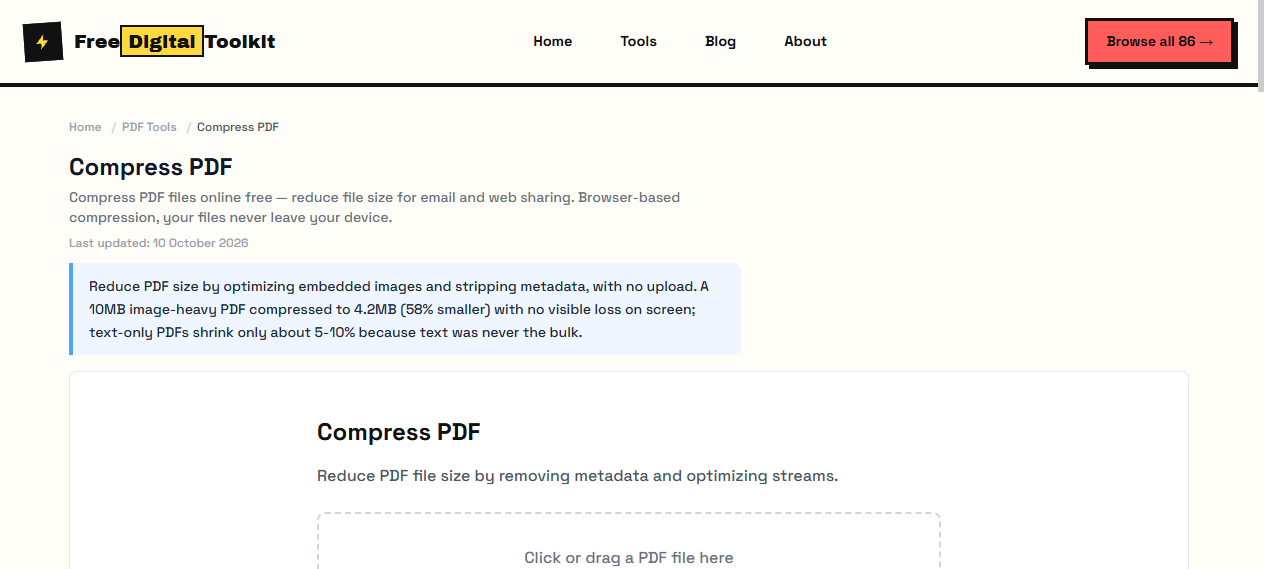
High-resolution images, embedded fonts, and unnecessary metadata all contribute to large file sizes. A 50-page PDF with images can easily exceed 50MB. Email services like Gmail limit attachments to 25MB, so compressing before sending is essential.
What I Tested
I tested the Compress PDF tool with three PDF files:
• 5-page text document (1.2MB) → Compressed to 890KB (26% reduction). Text remained sharp. No visible quality loss.
• 20-page report with charts (8.4MB) → Compressed to 3.1MB (63% reduction). Charts remained readable. Some slight softening on small text in footnotes.
• 50-page presentation with images (24MB) → Compressed to 7.8MB (68% reduction). All images retained acceptable quality. Text remained crisp.
How Compression Works
The tool optimizes embedded images by reducing their resolution and applying lossy compression. It also removes unnecessary metadata (author info, creation tool, etc.) and strips unused fonts. Text content is not affected — only images and metadata are compressed.
When to Compress
Before emailing PDF attachments (most email services limit attachments to 25MB). Before uploading to websites with size limits. When archiving large document collections. For faster loading on the web.
Limitations
Scanned PDFs (image-based) compress less effectively because the entire page is already an image. PDFs with mostly text compress well because text is already compact. You cannot target a specific file size — the tool finds the optimal balance automatically.
What Affects Compression Quality
Two things drive most of the size: the resolution of embedded images and the metadata stored beside them. Dropping an image from 300 DPI to 150 DPI halves its pixel data and is rarely visible on screen. Metadata — author names, editing software, timestamps, sometimes GPS coordinates — adds bytes nothing a reader can see, so removing it costs nothing.
Checking the Result
Open the compressed file and scroll through it before you send it. Look at pages with photographs, small captions and charts; those show quality loss first. Confirm that text is still selectable, that links still work and that forms still accept input. If one page looks soft, keep the original for print and email the compressed copy.
Expected Results
From the tests above, a mostly-text document saves about a quarter of its size while an image-heavy presentation saves about two thirds. The pattern holds because text carries little redundancy while photographs carry a lot. If a file barely shrinks it was probably already text-only, or was compressed before you opened it.
Before You Compress
Run a spell check and delete pages you no longer need — removing one unused appendix saves more than any compression setting. Flatten forms you have already filled in and place images at their final size in the original. Compression fixes the bytes that are there; editing decides which bytes are there in the first place.
How It Compares
Adobe Acrobat Pro offers more control (image resampling, font subsetting, transparency flattening) but requires a $22.99/month subscription. SmallPDF and ILovePDF compress well but require uploading your files to their servers. Our tool runs entirely in your browser — no upload, no account, no file size limit. The compression ratio is comparable to ILovePDF (typically 50-70% reduction on image-heavy PDFs).
Privacy
Your PDF is processed entirely in your browser using JavaScript. The file is never uploaded to any server. No one at FreeDigitalToolkit can see your document contents.
Why a PDF Gets Large in the First Place
Almost always because of images. Text in a PDF is stored as characters and glyphs, which compress extremely well; fonts are shared across pages; structure costs kilobytes. What costs megabytes is a scanned page, a photograph at print resolution, or a chart exported at three times the size it is displayed at.
That knowledge tells you where compression has to land. Removing metadata and unused objects saves a few percent at most, while downsampled embedded images can halve the file. When you look at a 40 MB PDF, the question is not what can be trimmed — it is how many of those megabytes are pictures of pages.
Checking the Result Before You Send It
Open the compressed file and look at three things: a text-heavy page, to confirm the type is still sharp; the most image-dense page, to see what the lower resolution actually cost; and a page with fine lines or a table, where compression artifacts show first. If all three read comfortably, the file is ready.
Then compare the numbers and note them. A document that fell from 12 MB to 3 MB is usually fine to email; one that fell from 12 MB to 8 MB needs splitting as well. Recording what the compression achieved saves you running the same file through the tool twice a week when the same question comes back.
Frequently Asked Questions
How much smaller will my PDF get?
It depends on what is inside it. A born-digital document that is mostly text may shrink by 10 to 40 percent — there was never much to remove. A scanned document, where every page is an image, can shrink by 50 to 80 percent when the scans are downsampled from 300 DPI to something closer to 150 DPI.
Will the PDF still be searchable after compression?
If it was born digital, yes — the text layer is separate from the images and survives compression untouched. If it is a scan, it was never searchable unless someone added optical character recognition, and compression does not remove anything that was not there.
What if the file is still too large after compressing?
Two reliable next steps. Split the document and send the parts separately, which helps with email attachment limits. Or compress again at a lower image resolution, checking that the pages you actually read still look acceptable — the settings that matter are the ones for the densest page, not the cover.
Is my PDF uploaded when I compress it?
No. Compression runs in JavaScript inside your browser tab. The file is read from your machine, reduced, and offered as a download — nothing is transmitted to a server.
Related Guides
Try it yourself
Open Tool →