Convert PNG to JPG Without Quality Loss
September 5, 2026
Written by Mohammad Sohail
PNG files are large because they use lossless compression. JPG files are much smaller because they use lossy compression that discards data humans cannot easily see. Converting PNG to JPG is one of the fastest ways to reduce file size — if you do it right.
When Conversion Makes Sense
PNG is ideal for screenshots, logos, and graphics with transparency. But if you do not need transparency and the file is too large (for email, web, or upload limits), converting to JPG at 80-90% quality produces visually identical results at a fraction of the size. PNG photos from cameras are especially wasteful — they offer no quality benefit over JPG but cost 3-5x more in file size.
What I Tested
I converted three PNG files using the PNG to JPG tool.
• Test 1: Screenshot (1920×1080). PNG original: 2.4MB. JPG at 85% quality: 310KB (87% reduction). Text remained sharp. Small color banding visible only when zoomed to 300%.
• Test 2: Product photo (4000×3000). PNG original: 8.7MB. JPG at 80% quality: 1.1MB (87% reduction). Colors matched closely. No visible difference at normal viewing size.
• Test 3: Logo with transparency (800×600). PNG original: 180KB. JPG at 90% quality: 95KB (47% reduction). Transparency was replaced with a white background, which is expected since JPG does not support transparency.
Step-by-Step
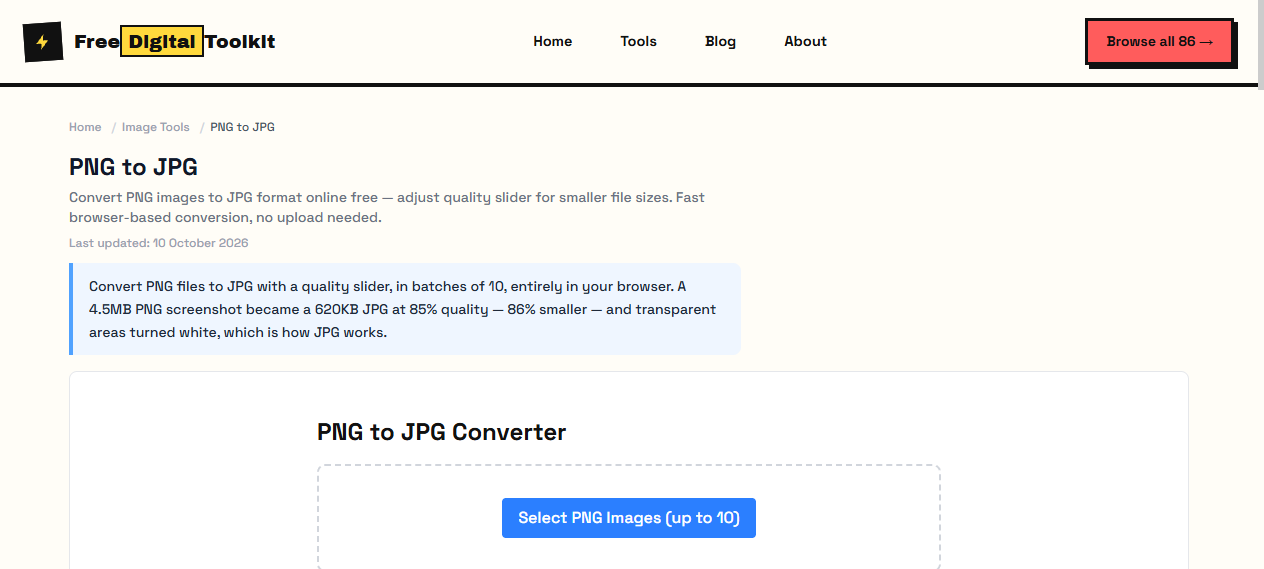
(1) Open PNG to JPG. (2) Click 'Select PNG Files' (supports up to 10). (3) Adjust the quality slider (80-90% recommended). (4) Click 'Convert'. (5) Download converted JPG files.
Limitation
JPG does not support transparency. If your PNG has a transparent background, the converter will replace it with white. If you need transparency preserved, keep the file as PNG or convert to WebP, which supports both lossy compression and transparency.
Common Mistake
Setting quality below 70% to get the smallest file. At low quality, JPG introduces visible blocky artifacts, especially around text edges and high-contrast areas. For photos, 80% is the practical minimum. For screenshots with text, stay above 85%.
How It Compares
Adobe Acrobat can convert PNG to JPG with fine-grained control but requires a paid subscription. CloudConvert processes files on their servers with a 50-per-day limit on free accounts. Our tool runs locally in your browser with no file limits, no upload, and no account required.
Privacy: Conversion happens entirely in your browser. Your PNG files are never uploaded. No server sees your images.
Next Step: If you want even smaller files with transparency support, try converting to WebP instead. WebP achieves 25-35% smaller files than JPG at the same visual quality.
Choosing the Right Quality Setting
The slider is a straight size-versus-detail trade, and the useful range is narrow. At 90 percent the file is large and the difference from PNG is already dramatic; at 85 percent most photos and screenshots look identical at normal viewing size; at 80 percent you save again with artifacts still hard to spot; below 70 percent blocking appears around text, edges and gradients.
Pick by content rather than by number. Screenshots with text: 85 to 90, because sharp edges are where JPG shows first. Photographs: 80 is the sweet spot for sharing. Logos and diagrams: do not convert them at all — flat art and thin lines are the one case where PNG or SVG beats JPG at any size, since a few kilobytes saved is not worth a fringed line.
JPG, PNG or WebP?
PNG keeps transparency and never degrades, which is why source graphics stay as PNG. JPG is universal — every email client, printer and operating system opens it — and that compatibility is usually the reason to choose it. WebP sits between the two: it supports transparency and typically lands 25 to 35 percent smaller than JPG at the same visual quality.
Choose WebP for images on your own website, where you control the browser support. Choose JPG when the file will travel: attachments, print shops, third-party upload forms and older software. If transparency must survive, keep PNG or use WebP, because JPG will fill the transparent area with white every time.
Batch Converting a Photo Library
Phone galleries store screenshots and photographs side by side, and both can benefit from conversion — for different reasons and in opposite directions. Photographs shrink dramatically as JPG; screenshots lose their text layer, because JPG rasterizes glyphs, so a converted screenshot can no longer be searched or copied from.
Sort before converting. Keep screenshots that contain text as PNG, or run them through OCR if you need them smaller; convert the photographs to JPG at 85 percent; and spot-check the largest files before doing the whole batch. A mixed gallery converted blindly either wastes space on screenshots that did not need it or destroys text you needed to search later.
Frequently Asked Questions
Can I convert the JPG back to PNG without losing quality?
No. JPG compression discards information during the first conversion, so converting back only wraps the already-lossy data in a different container. Keep the original PNG if you might need it later — the converter never modifies your source file.
Why did my converted file barely shrink?
Three usual causes: the image was already a JPG re-saved as PNG, it is mostly flat colour with little detail to compress, or it is small to begin with. Transparent images also gain a white background instead of shrinking much. Check the original dimensions and content before assuming the quality slider is wrong.
Does the conversion change the image dimensions?
No. Width and height are copied exactly — only the encoding changes. A 4000 x 3000 PNG becomes a 4000 x 3000 JPG, so resize first if you actually need smaller pixels rather than smaller files.
Which quality setting should I use for email or print?
For email and web pages, 80 to 85 percent keeps the file small and looks identical at normal size. For print, use 90 percent or higher and check the resolution: print needs roughly 300 DPI at the final size, and no quality setting compensates for a file that is too few pixels.
Are my images uploaded when I convert them?
No. The conversion runs entirely in your browser using its own image decoding and encoding. Your files are read from your machine and never transmitted, so nothing lands on a server or in a log.
Related Guides
Try it yourself
Open Tool →