Count Words and Characters Online
September 6, 2026
Written by Mohammad Sohail
Word counts matter. Students need to hit essay minimums. Content writers must stay within article limits. SEO meta descriptions work best at 150-160 characters. Social media posts have character caps. Knowing your exact count avoids last-minute scrambling.
What Counts as a Word
A word is any sequence of characters separated by whitespace. Contractions like 'don't' count as one word. Hyphenated words like 'well-known' can count as one or two depending on the counter. Our Word Counter treats hyphenated words as a single word, which matches most academic standards.
What I Tested
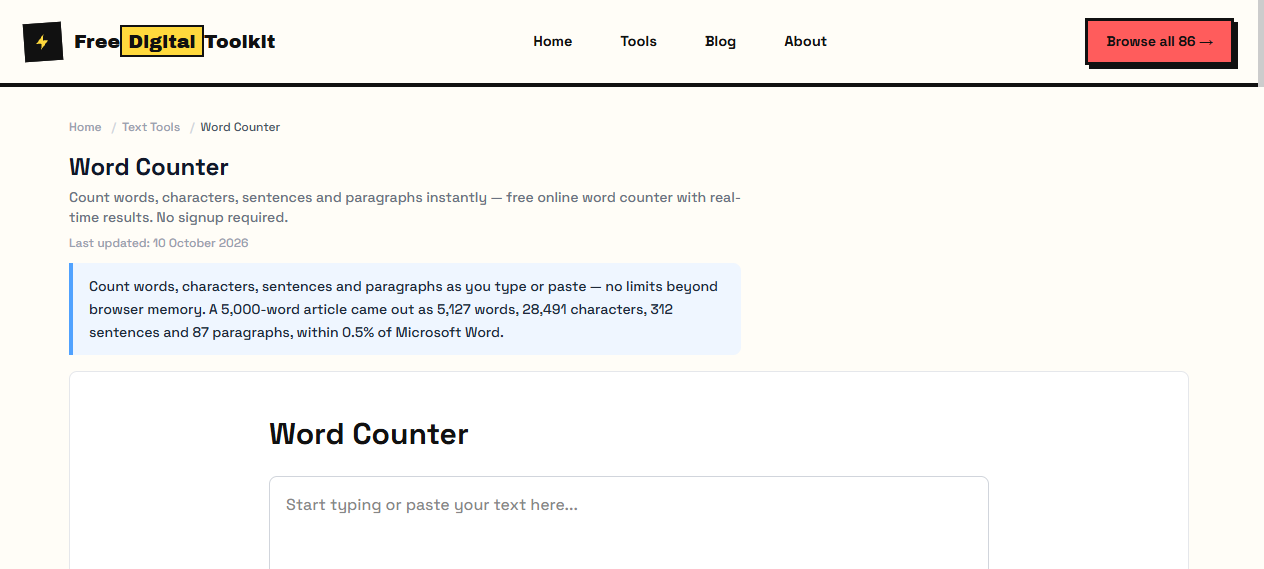
I pasted three different texts into the Word Counter.
• Test 1: A single paragraph from this article (423 characters). Result: 68 words, 423 characters, 418 characters without spaces, 3 sentences, 1 paragraph.
• Test 2: A full blog post draft (8,421 characters). Result: 1,247 words, 8,421 characters, 7,103 characters without spaces, 62 sentences, 14 paragraphs.
• Test 3: An empty text field. Result: 0 words, 0 characters, 0 sentences, 0 paragraphs. Reading time showed '0 min'.
The counter updates in real time as you type or paste text. No button click needed.
Reading Time Estimate
The tool calculates reading time based on 200 words per minute (average adult reading speed). A 1,500-word article shows approximately 7-8 minutes. This is useful for blog authors estimating how long readers will spend on a page.
Step-by-Step
(1) Open the Word Counter. (2) Paste your text into the text area (or type directly). (3) Read the word count, character count, sentence count, and reading time below the text area. (4) The counts update live as you edit.
Limitation
The counter does not detect language-specific word boundaries. For Chinese, Japanese, or Korean text (which does not use spaces between words), the character count is more accurate than the word count. For these languages, rely on the character count instead.
Common Mistake
Copying text from a PDF and pasting it into the counter. PDFs sometimes insert invisible characters (soft hyphens, non-breaking spaces) that inflate the character count. If your count seems higher than expected, try copying the text from the original source document instead of the PDF.
How It Compares
Microsoft Word has a built-in word count but requires the full desktop application. Online-Word-Counter.com works similarly but shows ads and has no reading time estimate. Our tool includes reading time, sentence count, paragraph count, and real-time updates with no signup.
Privacy: Your text stays in your browser. It is never transmitted to any server. This is safe for sensitive documents, legal text, or unpublished content.
Next Step: If you need to clean up extra spaces, line breaks, or special characters before counting, use the Text Cleaner. It strips hidden characters and normalizes whitespace. Writing from a topic instead? Generate plagiarism-free content with the Content Generator.
Useful Word Count Targets
Short form: social captions and meta descriptions live between 120 and 300 words, and they are constrained more by character limits than by word limits. Blog posts that aim to answer one question properly usually land between 600 and 1,200 words — long enough to cover the topic, short enough to finish. Guides and reference pages run past 1,500 when the subject genuinely needs steps, tables or examples.
Academic and professional settings set their own ranges, and they rarely move. Essays, reports and applications specify a limit for a reason: exceeding it looks like ignoring instructions, falling far under it looks like avoiding the work. Use the counter before you submit, not after, and remember that headings, captions and reference lists are sometimes excluded from the total.
When Counting Is Not Enough
A word count tells you the size of a piece, never its quality. Two 800-word articles can differ completely: one says the thing a reader needed in the first hundred words, the other spends four paragraphs warming up. Once the count is in range, check whether the opening answers the question, whether every section earns its place, and whether anything can be cut without losing meaning.
The counter is also useful in the opposite direction — for cutting. Paste a paragraph that feels long, see the number, and ask whether a third of it is padding. Removing filler rarely changes the count you are aiming for as much as you fear, and it almost always improves the writing.
Frequently Asked Questions
Do hyphenated words and numbers count as one word or two?
Counting is done on whitespace, so anything separated by a space is one word: well-written counts once, and 2026 counts once even though it has four digits. Different tools occasionally disagree about these edge cases, which is why a browser counter, Word and a submission form can report three slightly different totals for the same paragraph.
Why is my count different from the one in Microsoft Word?
Word also counts text inside text boxes, footnotes and headers, and it can be configured to include or exclude them. Online counters that only read the main text area will report fewer words for the same document. For anything being submitted, trust the tool named in the submission guidelines.
How accurate is the reading-time estimate?
It assumes 200 words per minute, which is close to comfortable silent reading for non-fiction. Dense technical material runs slower and light web copy runs faster, so treat the estimate as a guide for a page rather than a stopwatch for a paragraph — it is most useful for deciding whether a piece needs subheadings.
Is my text uploaded when I count it?
No. Counting happens in your browser on the text in front of you. Nothing is transmitted or stored, so drafts, private correspondence and unpublished material are safe to check.
Related Guides
Try it yourself
Open Tool →